
Smartphone Applications
| Application | Version |
|---|---|
| Application for control BtControl702(for firmware versions 2.xx) | V2.10 |
| Application for control in wattmeter mode BtControl703 (for firmware versions 4.xx) | V3.2 |
| Application for firmware updating BTupdater700 | V1.0 |
How to update the firmware
We are constantly working on improving the functions of our device. Information about new firmware will appear in the news window on the main page, and they will also be visible in the firmware update application. In order to update the firmware using an Android smartphone, you need to install the BTupdater700 application.
After launching, the application will connect to our server and show available firmware. You need to select the one you want to download and click on it.
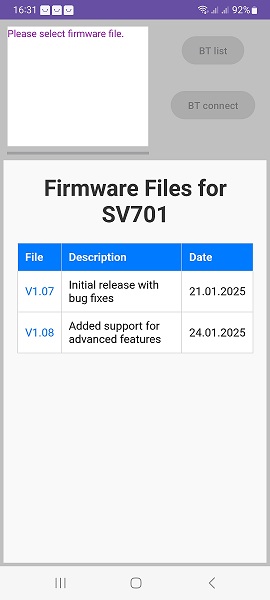
After this, the firmware file will be downloaded to the smartphone and the buttons for pairing with the device will become available. The pairing process itself is similar to pairing with the main application for controlling the SV701. This process is described in detail on the main page.
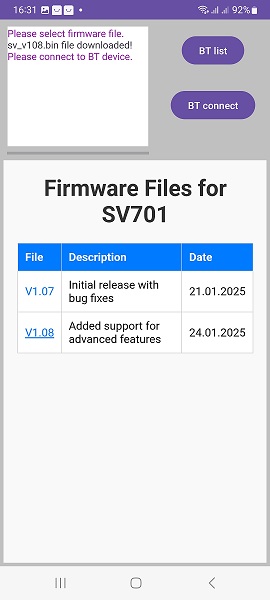
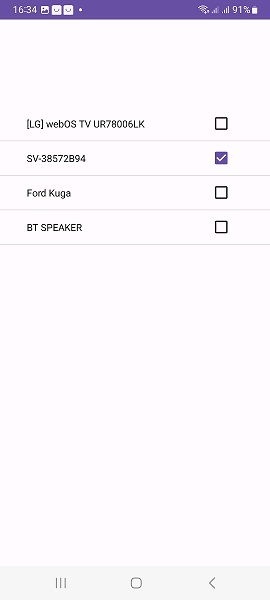
When pairing for the first time, you need to press the BT list button and select our device. Then use the system button to return to the main window.
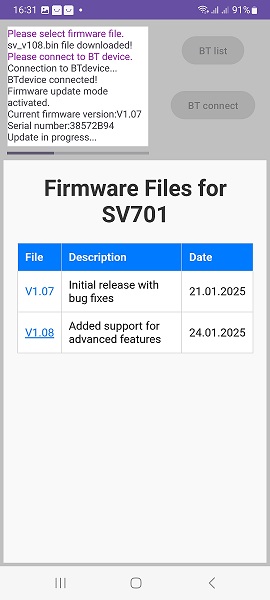
Now you can press the BT connect button. The download process will begin. Its progress will be visible on the smartphone screen. When the download is complete, the application will display a corresponding message, and the SV701 will return from download mode to normal operation.
What to do if the firmware download failed
Occasionally, there are situations when the firmware download process failed. For example, the device power was disconnected during the download. Or the smartphone received an unexpected call during the firmware update, etc. In this case, the download process may be interrupted and the device will stop performing its functions. The symptoms will be as follows: the device will stop transmitting data to the control application, after power is supplied, the left LED will blink only for the first 20 seconds.
This situation is easy to fix. To do this, you need to activate a special firmware download mode. The algorithm is as follows: Turn off the SV701 power (disconnect the cable), run the BTupdate application, select the desired firmware. Now you need to supply power to the SV701 (connect the cable). After that, the left LED on the SV701 connector will start blinking. Now we have 20 seconds to establish a Bluetooth connection. Press the BT connect button in the application. After the 20-second interval ends, the normal firmware download process will begin.