
How to update firmware
We are constantly working to improve the functions of our device. Information about new firmware will appear in the news window on the main page, and they will also be visible in the device’s web interface. The SV705 device includes two microcontrollers. One is responsible for the main functionality of the device, the second is for the web interface and wifi connection. Both microcontrollers can be updated online from the configuration page. To get to it, you need to click on the green gear in the upper right corner of the main working window.
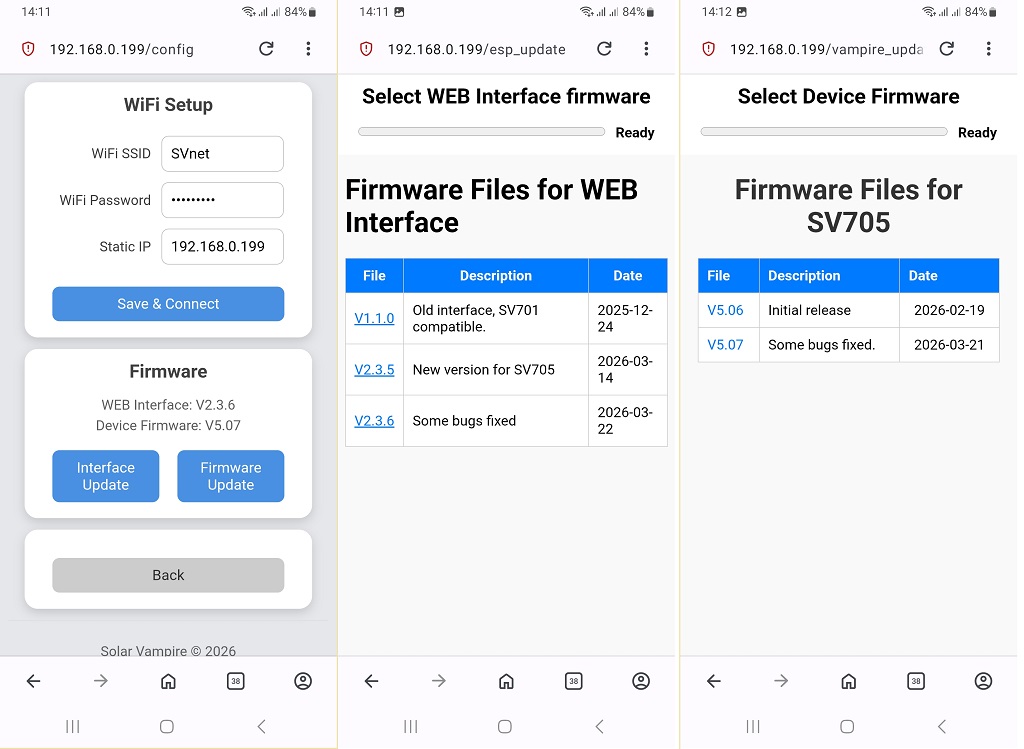
At the bottom of the page there is information about current firmware and buttons for updating. To update the interface you need to click on the buttonInterface Update. To update the device you need to press the buttonFirmware Update. After this, the firmware file selection page will open. After clicking on the desired file, the update will begin automatically. Onthis videoA step-by-step example of updating both firmware from a browser on a PC is shown.
What to do if the firmware was unsuccessful
Occasionally there are situations when the firmware download process ends unsuccessfully. For example, the device's power was turned off while booting. Or there are problems with the Internet, etc. In this case, the boot process may be interrupted and the device may no longer perform its functions. This situation can be easily corrected.
If a failure occurs when updating the interface, you must turn the device off and on (remove and reapply power). The device will start with the old interface that was before the update attempt. After this, the attempt must be repeated.
If a failure occurs when updating the main firmware, you must turn the device off and on (remove and reapply power). The device will go into emergency bootloader mode. The symptoms will be as follows: the device will stop polling the inverter and transmitting data to the screen. The left LED on the RJ45 connector will flash in this cyclic rhythm: three short flashes then a pause. This behavior will continue for 40 seconds. During this time, you need to have time to go to the configuration page and select the required firmware file. The update process will not begin immediately after the click, but after this 40-second interval has expired.